Introduction
In the world of website management, particularly with WordPress, understanding how to change the URL of your site is crucial. Known as “WordPress URL ändern,” this process affects everything from SEO rankings to the overall user experience. Whether you’re rebranding your site, changing your domain name, or migrating to a new host, knowing how to properly alter your URLs is fundamental. In this guide, we will walk you through the process of changing your WordPress URL, discuss various use cases, provide some helpful tips, and compare different methods. By the end, you’ll feel confident tackling this essential aspect of WordPress management.
What is WordPress URL ändern
“WordPress URL ändern” translates to “change WordPress URL” in English. This phrase encompasses any alterations made to the URLs associated with your WordPress site. You could be aiming to change the entire site URL or just specific links within your site. The URL structure can significantly impact your site’s visibility on search engines, the ease with which users navigate your site, and even the effectiveness of any campaigns you run.
Why Change Your WordPress URL?
There are multiple reasons why you might consider changing your WordPress URL. Let’s explore some of the most common scenarios:
Rebranding your Site
If you’re rebranding your business, you might want a new domain name that better reflects your brand identity. This often leads to a full URL change, ensuring that customers can find your new branding more readily.
Improving SEO
Older URLs or structures that don’t align with SEO best practices may hinder your site’s visibility. Changing to a more user-friendly URL can enhance your search engine rankings and increase traffic.
Migrating to New Hosts
When moving your site to a new hosting provider, your URL may need to be adjusted. For example, if you’re shifting from a temporary domain to your permanent domain, a URL change is essential.
How to Change Your WordPress URL Schritt für Schritt
Changing your WordPress URL might sound intimidating, but with a systematic approach, it can be straightforward. Here’s a detailed step-by-step guide:
1. Backup Your Site
Before making any changes, it’s crucial to back up your WordPress site. You can use plugins like UpdraftPlus or BackupBuddy for hassle-free backups. Visit our Website Audit page for more information on safe backup practices.
2. Update Your Site Address in Settings
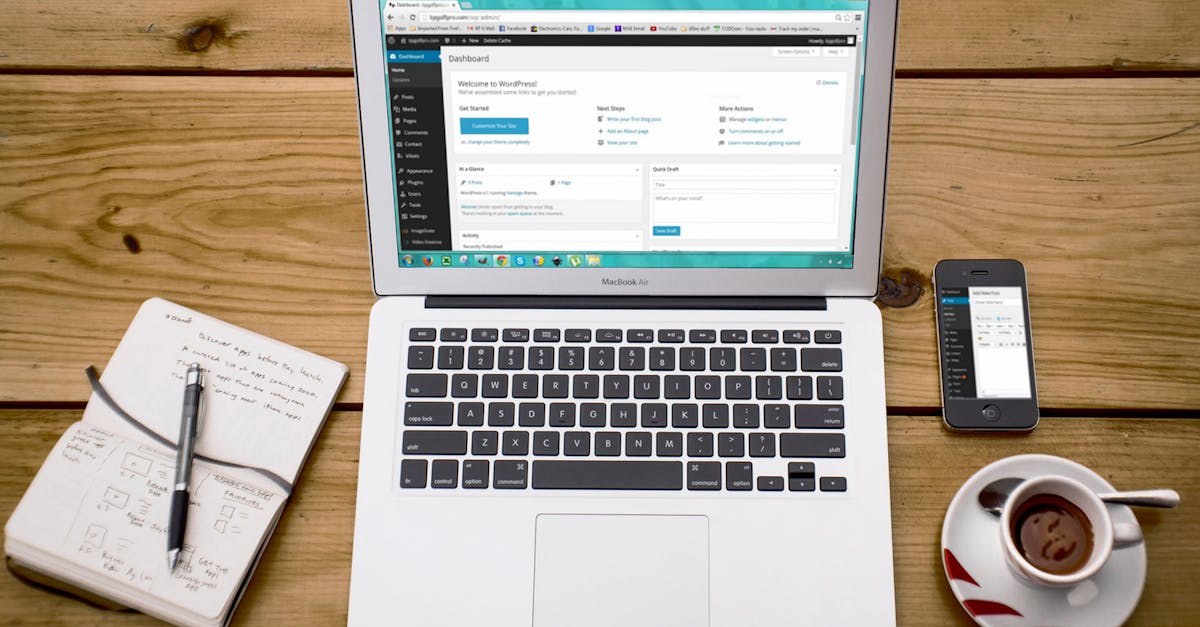
Navigate to your WordPress dashboard and go to Settings > General. Here, you’ll see two fields: “WordPress Address (URL)” and “Site Address (URL).” Update these fields with your new URL. Be mindful that changing this without proper redirects can lead to broken links.
3. Modify the wp-config.php File
If you can’t access your dashboard, you can change the URL in your wp-config.php file. Add the following lines in the file:
define('WP_HOME', 'https://newurl.com');

define('WP_SITEURL', 'https://newurl.com');
This will direct WordPress to your new URL.
4. Update Permalinks
Next, you should update your permalinks. Go to Settings > Permalinks and simply hit ‘Save Changes’ to refresh your URL structure. This helps ensure that your new URLs are configured correctly.
5. Update Links Within Your Content
Your internal links may still carry the old URL, which can create issues. Use a plugin like Better Search Replace to bulk-update your links throughout your site’s content. Learn more about this process on our WordPress Help page.
6. Redirect Old URLs
Implementing 301 redirects from old URLs to new ones is crucial to retain web traffic and improve SEO. You can use plugins like Redirection or Simple 301 Redirects for this purpose. For additional insights on security, consider visiting our Security Hardening page.
7. Update Google Search Console
Finally, after changing your URL, inform Google about the change by accessing Google Search Console. This will help prevent any potential issues with indexing the new URLs.
Use Cases for Changing WordPress URL
Now that we’ve walked through the basic process of changing your WordPress URL, let’s delve into some real-world use cases where this knowledge proves tricky but invaluable.
Use Case 1: A Small Business Rebranding
Imagine a local bakery named “Sweet Treats” wanting to position itself as an upscale dessert shop named “Gourmet Delights.” Changing their website’s URL from SweetTreats.com to GourmetDelights.com would be a significant step in their rebranding strategy. Properly managing this change can attract a new clientele, increase traffic, and improve SEO performance.
Use Case 2: E-commerce Store Migration
An e-commerce store migrating from a subdomain (like Store.OldDomain.com) to a new, more streamlined primary domain (like NewDomain.com) makes URL changes critical. Customers need seamless navigation during the transition. Proper URL adjustments are essential to retain traffic and avoid disrupting the shopping experience.
Use Case 3: Blogging for a Niche Market
A blogger focused on vegan recipes might switch from a general blog to one specializing in vegan meal prepping. This transition could require changing their URL from www.VeganEats.com to www.VeganMealPrep.com. The URL change enhances searchability and ensures that the content aligns better with the intended audience.
Tips for a Smooth URL Change
To ensure a seamless transition when “WordPress URL ändern,” consider the following helpful tips:
Tip 1: Test Everything
After making changes, test your URL thoroughly. Check if all links work, and your site is behaving as expected. Use tools that crawl your website, like Screaming Frog, to identify any broken links.
Tip 2: Monitor Your Traffic
Post-change, keep an eye on your website traffic through Google Analytics. Watch for any drastic drops or unusual patterns, which could indicate issues with redirecting or broken links.
Tip 3: Update Social Media Profiles
Don’t forget to update the links on your social media profiles and online directories. Ensure your audience can find your new URL without confusion.
Tip 4: Stay Consistent
Make sure to maintain a consistent branding message across your new URL. This includes any elements of design, content, or structure. Consistency helps reinforce your brand identity.
Comparing URL Changing Methodologies
Changing your WordPress URL can be achieved through different methodologies—by using the WordPress dashboard, modifying the wp-config.php file, or utilizing a plugin. Let’s compare these methods:
Using the WordPress Dashboard
The direct method via the dashboard is user-friendly and quick. It’s ideal for less technical users. However, potential issues may arise if old links are left unchecked.
Modifying wp-config.php
This method is more technical and often used when access to the dashboard is limited. However, it requires careful handling, as live changes can disrupt site operability.
Plugins for URL Changes
Using a plugin can simplify the process and automate many steps, including redirects. Yet, relying heavily on plugins may lead to performance issues if not managed properly.
Conclusion
In conclusion, understanding how to change your website’s URL using the “WordPress URL ändern” technique is invaluable for anyone managing a WordPress site. Whether you’re planning to improve your site’s SEO, transitioning to a new domain, or simply updating your brand, this guide offers a comprehensive roadmap. To ensure a hassle-free experience, keep our tips in mind and select a method that suits your expertise level. Are you ready to take action? Start with a Free Website Audit and follow it up with a Free Consultation to safeguard your WordPress journey. Your website’s future is bright—let’s ensure it shines through every URL change!
Comprehensive Guide to Wordpress URL Ändern
What does Wordpress URL ändern mean?
Why would I need to change my Wordpress URL?
What are the steps for Wordpress URL ändern?
How does changing the Wordpress URL impact my SEO?
Will my website go down during the Wordpress URL ändern process?
Do I need any technical skills to change my Wordpress URL?
What are common mistakes when changing Wordpress URL?
How can I redirect my old URL to the new one?
Is it possible to revert back after Wordpress URL ändern?
Can I find support for changing my Wordpress URL?